Webhooks
Webhooks are events from Tower that are sent via HTTP. They provide a way for you to receive events from Tower, such as when a run starts or finishes, in real time.
Setting up a webhook
Create a webhook endpoint on your end
First, create a publicly available endpoint that Tower can send webhooks to. This endpoint must meet the following criteria:
- Must be POST.
- Must accept JSON.
- Must accept the following headers:
X-Tower-Signature,X-Tower-Webhook-Timestamp. - Must return 200 status on success.
- Should verify the signature based on the timestamp and payload (details below).
- Should be HTTPS.
If you want to test in a local development environment before adding an endpoint to your production environment, we recommend using a tool like ngrok that will create a tunnel between the public internet and your local development environment.
Set up a webhook configuration in Tower
Next, create a webhook configuration that points to this publicly available endpoint in Tower. You can do this from your Team Settings → Webhooks.
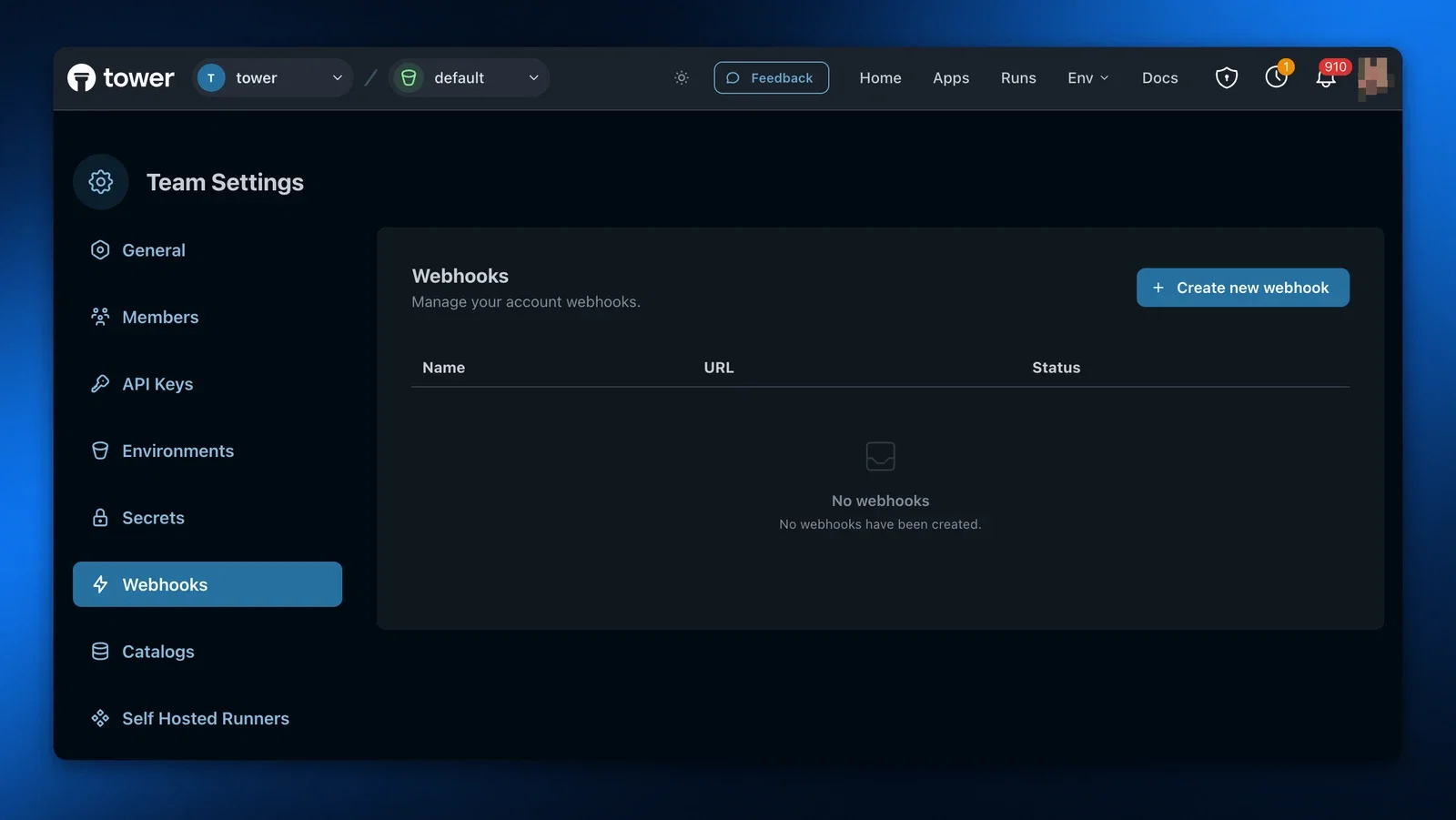
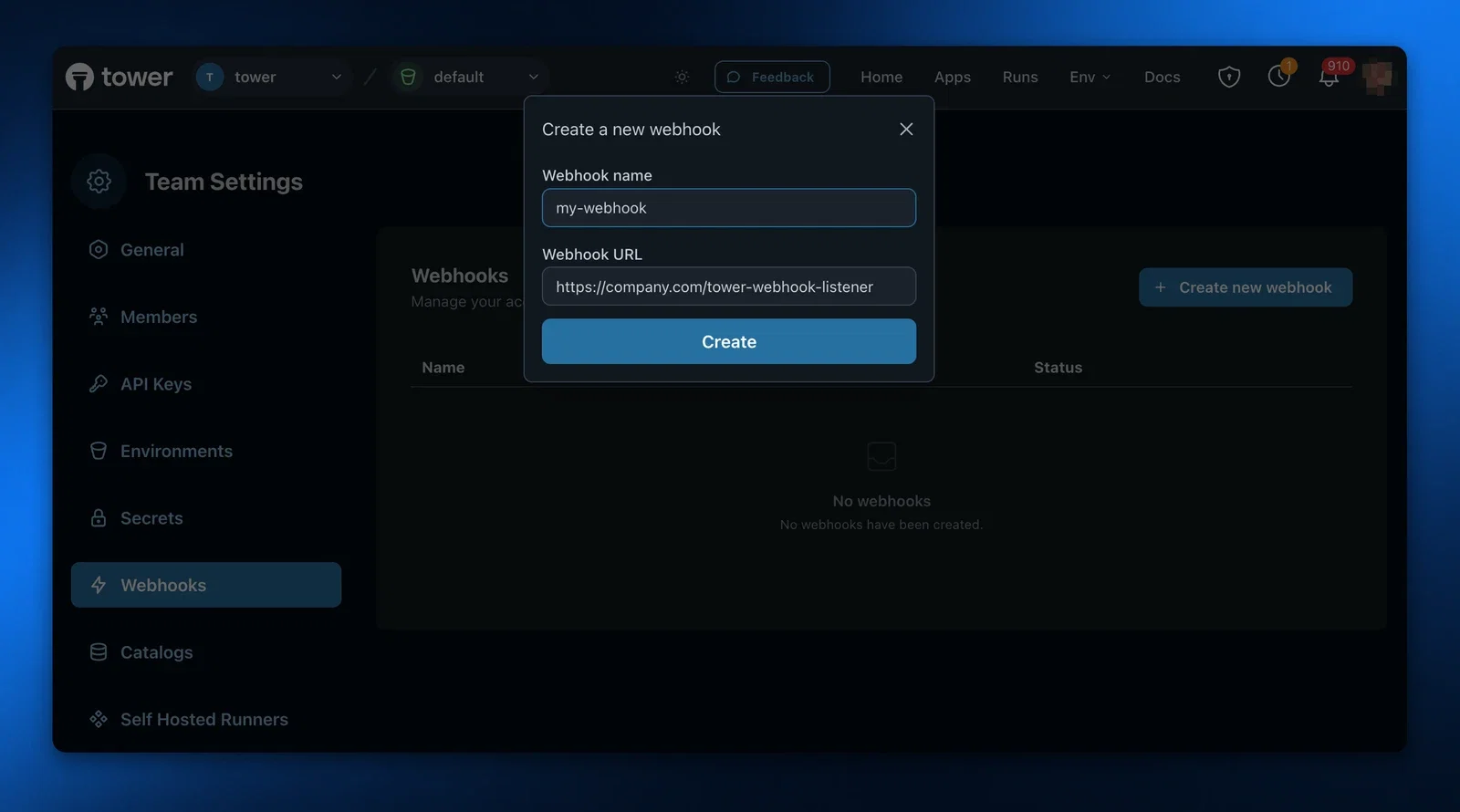
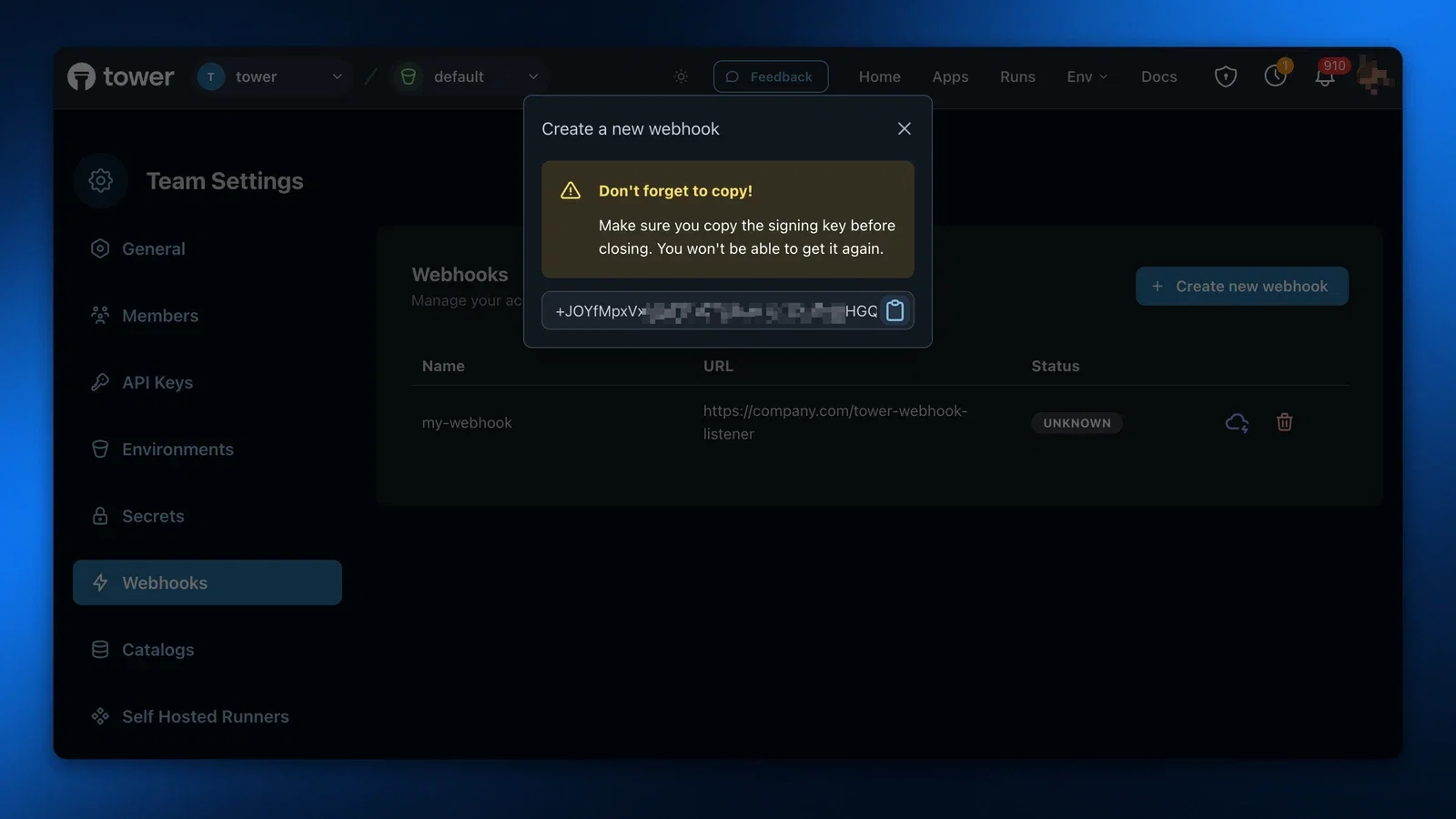
Note that you will get an encoded shared secret upon creation. Copy this somewhere as you need it to do signature verification and you won’t be able to see it again.
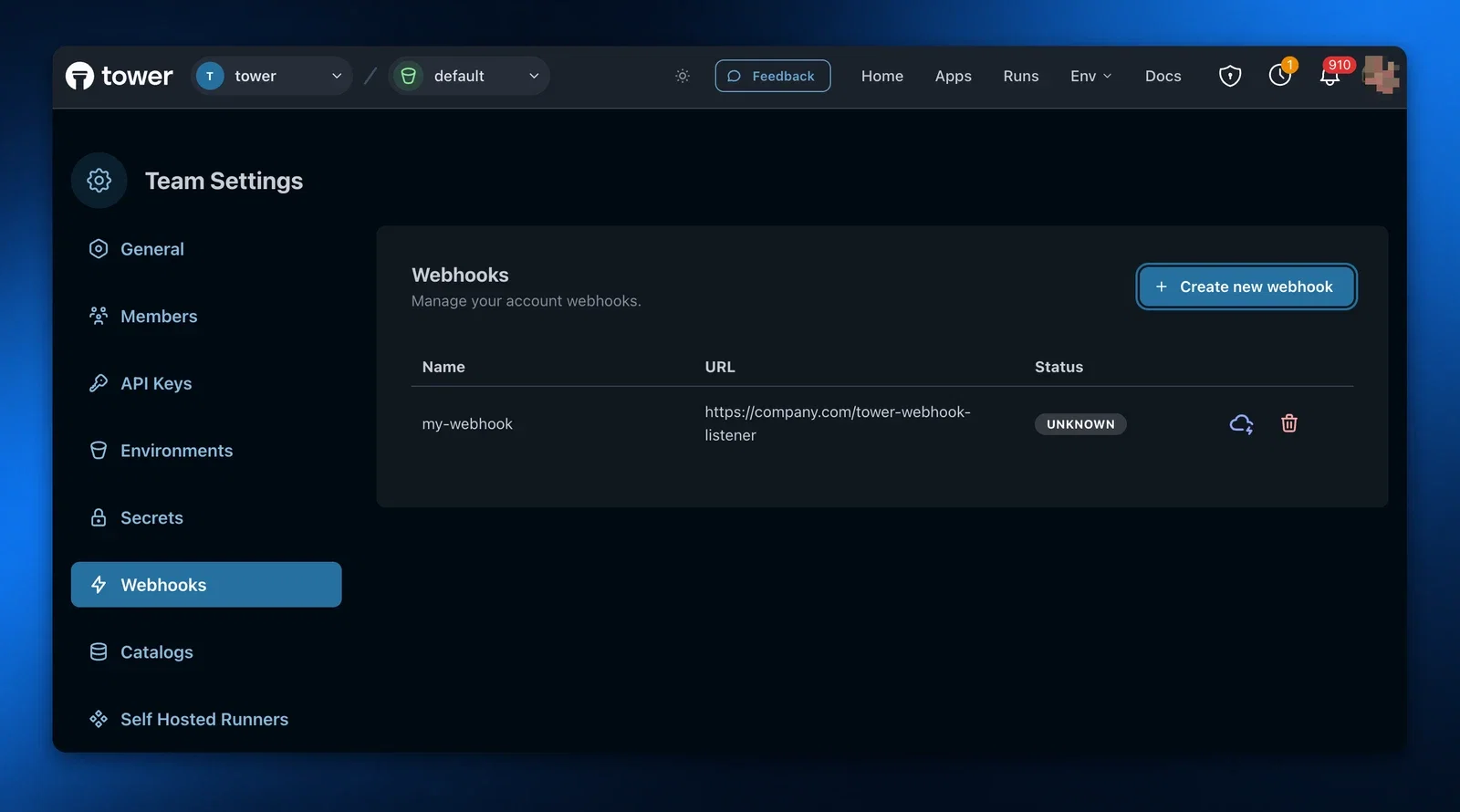
Once your webhook is created, you’ll see it on the table in the Unknown state.
Verify the request signature
We highly recommend that you write signature verification code as part of your webhook request handler logic to ensure that the webhook is indeed coming from Tower and to reject any webhooks that do not have a valid signature.
In each webhook request, in addition to the payload body, you will receive two important headers:
X-Tower-Signature: padded base64 encoded HMAC SHA512 hash.X-Tower-Webhook-Timestamp: the timestamp, a Unix milliseconds resolution integer, when the webhook was sent from Tower.
To verify the signature, perform the following steps:
- Check that the incoming timestamp is relatively close to the current time, to avoid replay attacks. Note that the incoming timestamp is in milliseconds, so ensure the way you generate the current time takes this into account.
- Create a new SHA512 HMAC digest with the key as the decoded shared secret you received when creating the webhook.
- Update the digest with the incoming timestamp, as bytes.
- Update the digest with the incoming request body, as bytes. We recommend to get the request body directly as a buffer and using that, to ensure that no potential JSON decoding step makes subtle changes to the bytes used for the digest.
- Generate a hash of the digest you’ve created.
- Compare your hash with the hash from the
X-Tower-Signatureheader. They should match exactly. Note that the header is padded (meaning, it will potentially have=appended to it), in case you are comparing the hashes as strings.
If the signatures do not match, we highly recommend you reject the request.
Testing
Once the webhook is configured, you can test it by clicking the Test icon in the table.
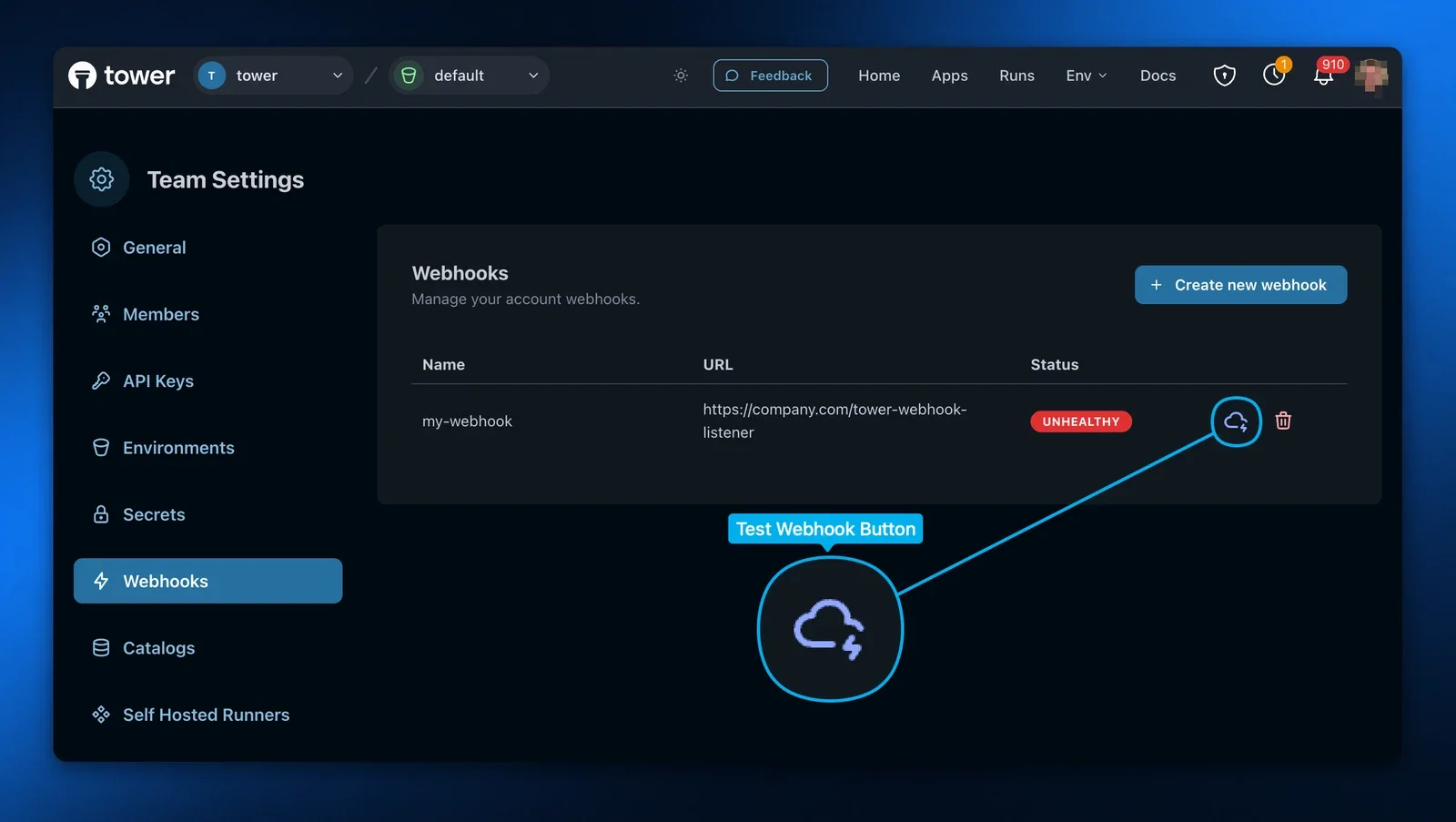
If everything is working, you should get a successful notification! Once the webhook testing is successful and the webhook is healthy, it is ready to receive events. Note that if the webhook is unhealthy, Tower will skip sending events to that webhook.
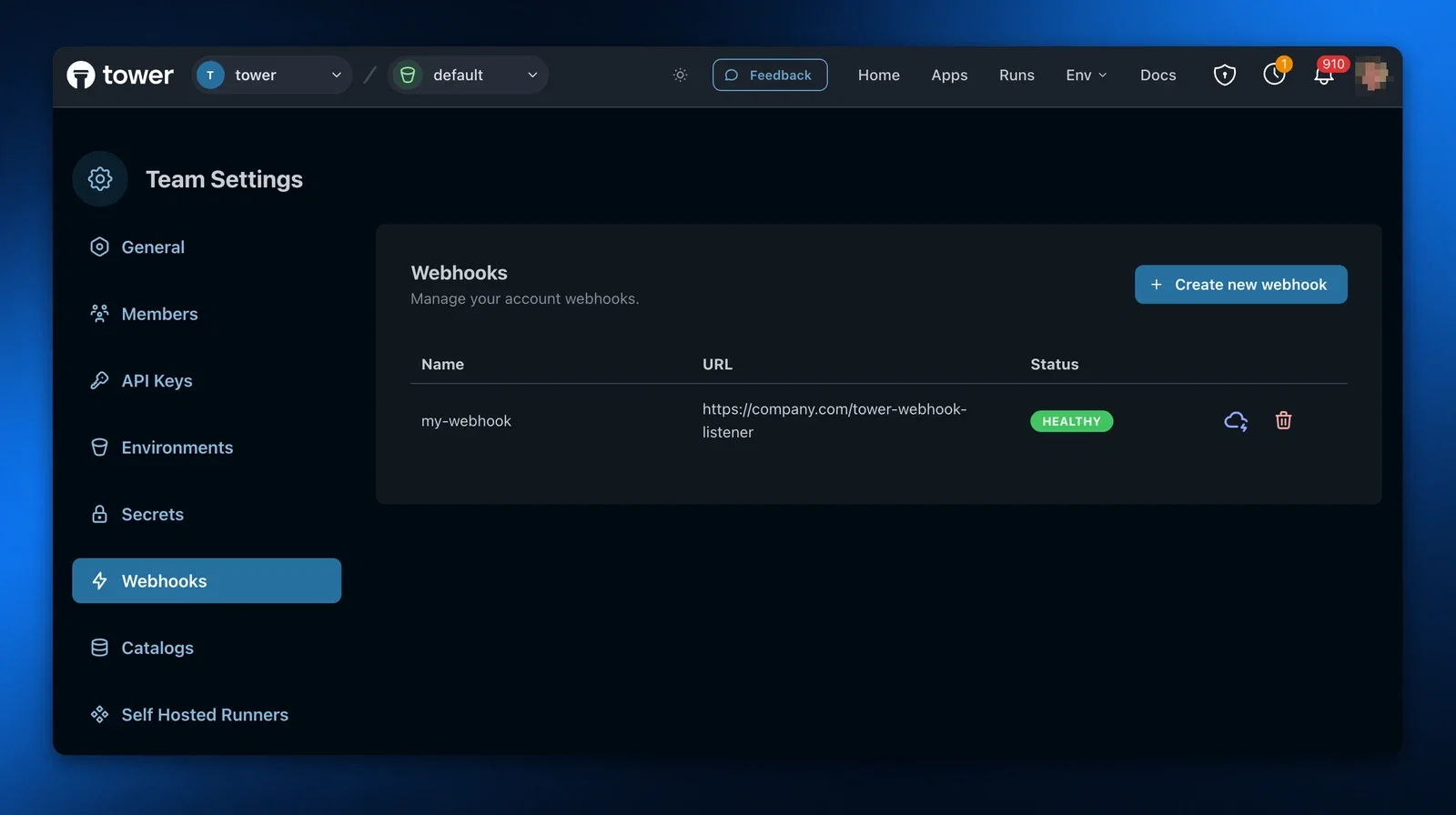
If things aren’t working, double check the following:
- Your endpoint returned 200. Any non-200 status, even if it is in the 2XX range, will not be counted as successful.
- If you’re verifying the signature, double check the verification code is working correctly.
- Make sure you responded in time.
Best practices
Respond to a webhook as soon as possible
Tower waits up to 30 seconds for a response from your URL before considering the request to have timed out and failed, which will cause it to retry later. Make sure you respond to the webhook request as soon as possible with a 200 status code, and do any computationally expensive or slow processing asynchronously.
Always respond with a 200, even if something fails on your end
Tower considers that any non-200 response (including other 2XX status codes such as 204) to be a delivery failure and will retry the event, at some later point in time. To avoid getting repeat events due to this, always respond with a 200 when receiving a webhook.